If you want to download a LinkedIn profile picture, it is easier to do it when using a profile picture downloader. These tools come in handy when you want your old profile picture back, want to save a public picture for personal reference or if you require a work-related picture with all necessary permissions.
Normally, LinkedIn does not provide a simple download button for another person’s profile picture. Therefore, users have to turn to third-party website that are able to provide the image download option online for the public users.
In this guide, we look at five LinkedIn profile picture downloader options and explain how they work, what makes each one useful, and how to download a profile photo step by step.
Table of Contents
What Is a LinkedIn Profile Picture Downloader?
A LinkedIn profile picture downloader is an online service that allows you to download publicly available photographs from LinkedIn user profiles.
While LinkedIn allows you to see a profile picture, there may not be an option to save that photo to your device. A third-party downloader can help download a publicly available profile picture.
Using a downloader may be helpful for:
Downloading your old profile picture
Keeping records of work contacts
Creating your speaker/team page with permission
Finding out what a public profile picture looks
Keeping your own copy for research
However, just because you’re able to download a photo, doesn’t mean you can use that photo.
5 Best LinkedIn Profile Picture Downloaders
There are many different online tools you can find that can help you get the content from LinkedIn. However, these tools actually do this by using different means. Some may use the URL of the LinkedIn profile, while other may turn to public LinkedIn posts.
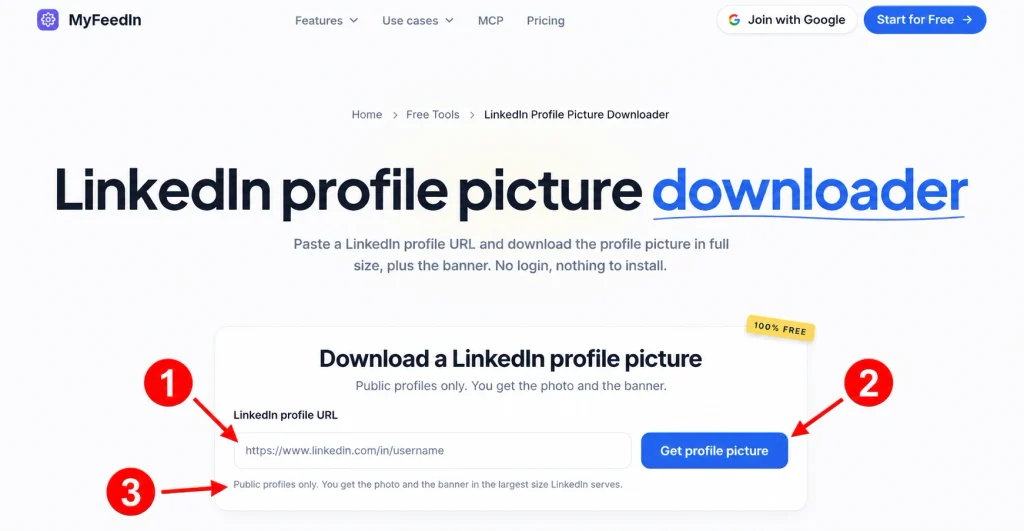
MyFeedIn.co includes a variety of LinkedIn tools that allow users to access public profile information and download images posted publicly on LinkedIn.
The LinkedIn profile viewer feature provides users with details about a public profile, including a picture of it. This feature allows users to view the profile first in order to be able to download the picture.
How to use MyFeedIn:
Locate the required profile or public post on LinkedIn
Copy the link for the profile
Go to the MyFeedIn tool
Paste the URL in the finder
Start searching for or downloading the profile
Check if an image is available
Finally, if public and justifiable (for example, ask for copyright permission beforehand), download it.
MyFeedIn provides an additional feature called LinkedIn image downloader which works for images published in public LinkedIn posts.
So make sure to select the right tool according to the fact that you need to either use the profile URL or the URL of the post.
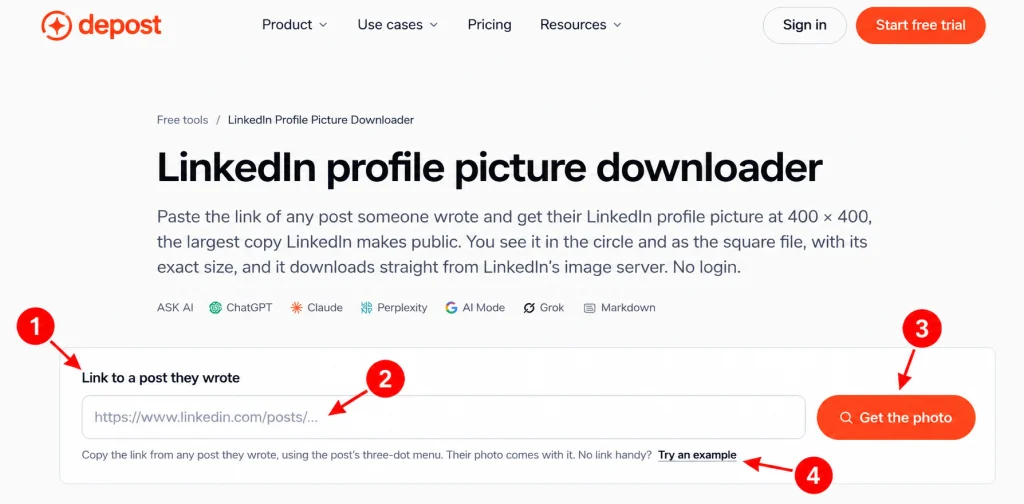
Depost.ai has a specific LinkedIn Profile Picture Downloader. Its technique has a bit of a different twist in that it can use a publicly available LinkedIn post written by the person.
This can be valuable when you have a link to a public post but do not want to do searches to find the profile through traditional methods.
How to use Depost:
Open up the public LinkedIn post of the desired person.
Click on the three-dot icon.
Select the menu option to copy the link to the post.
Go to the Depost.ai profile picture downloader.
Paste the URL of the post into the application.
Choose the desired option to obtain the photo.
Take a look at what picture is available.
Save the file.
The quality of the image you get is going to depend upon the availability of that particular image through LinkedIn. There may not be a standard size or quality available from profile to profile that you work with.
Depost.ai also points out that just because you can download the image does not mean that you have the right to use it publicly and reuse in your materials.
As a result, it is wise for you to consider how you are going to use the image.
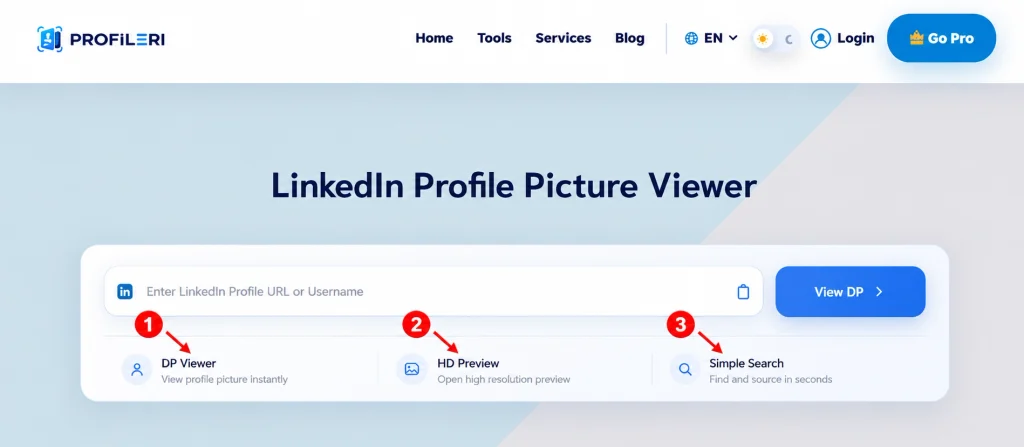
Profileri.com has a LinkedIn profile picture viewer that is able to use LinkedIn profile URL or name.
This can be quite useful if the public LinkedIn profile of the individual is already known.
Instead of searching for a certain post, you may want to start directly on the profile page.
How to use Profileri:
Copy the public LinkedIn profile URL.
Go to the Profileri LinkedIn profile picture feature.
Paste the URL or enter the name.
Search for the profile.
Check for the corresponding profile.
View the profile picture.
Make a copy of the photo, only if it is allowed and has been agreed upon by the owner.
Profileri also has different types of tools that are used for seeing the public profile-related information of the person.
The advantage of using a profile-based search method is that you can confirm the person’s existence before saving his/her photo, thereby avoiding any confusion when multiple individuals happen to have the same name.
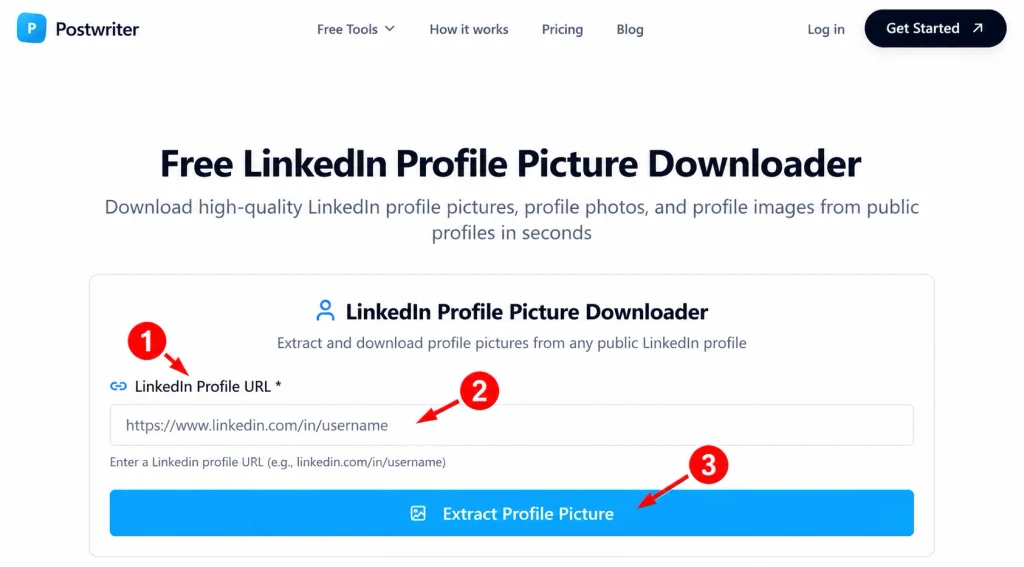
Postwriter.co comes with tools and information on LinkedIn that allows you to know about people’s basic information on their LinkedIn profile.
Using the LinkedIn profile viewer from Postwriter.co, you can get information about somebody’s public details, such as name, headline, profile picture, educational background, work history, and so on.
This tool is beneficial when you would like to know more than just a profile picture on LinkedIn.
How to use Postwriter:
Discover the LinkedIn profile you need.
Ensure that the profile is public.
Make use of the available profile or the picture tools.
Enter your profile URL.
Review the returned information.
Refer to the available profile picture.
Save the image when necessary.
The most important step in this process is to ensure that you have verified the information available through Postwriter.co before assuming that every LinkedIn profile will be able to provide you with information.
Please note that not all LinkedIn profiles are set in the same privacy setting, meaning that some public profiles may allow you to extract images and some may not.
People who work frequently with LinkedIn content or with professional profile research may also find Postwriter.co beneficial.
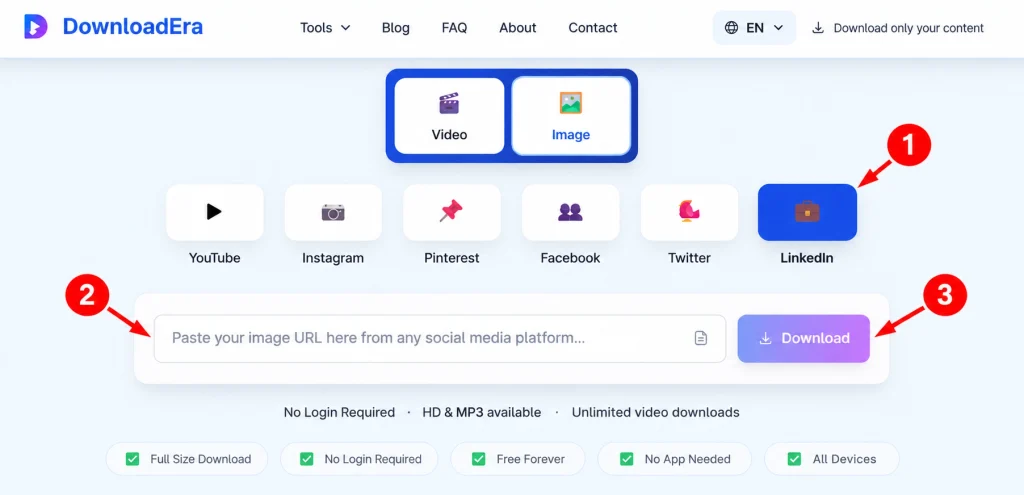
Downloadera.com is a social media downloader based in the browser and designed for downloaders of LinkedIn content.
It is best when you are looking for a simple process through links because there is no need to install any application since it is open in the browser.
How to use Downloadera:
Find your public LinkedIn content.
Copy its URL.
Go to Downloadera.
Paste the link into the downloader.
Let the downloader do its job.
Select the option you want for downloading.
Downloadera works with several social media platforms. Make sure you have selected the right option for LinkedIn.
Finally, don’t forget that there is a difference between a profile picture and a video. The procedure is different for each of them.
Can You Download Any LinkedIn Profile Picture?
No. A downloader is unable to obtain every LinkedIn profile picture.
The success of downloading a profile picture is largely dependent on what LinkedIn allows the public to see as well as on the privacy settings of individual users.
For instance, while a profile picture can be seen on someone’s LinkedIn profile, there may be no option to obtain it through a downloader due to privacy settings.
Another example could be that a public post on LinkedIn has sufficient information to allow a downloader to obtain a profile picture even if it does not reside on the downloader.
Therefore, just because a user cannot download a profile picture does not mean that the downloader does not work—it simply means that the image is unavailable through this method.
Tips for Downloading LinkedIn Profile Pictures
Before you download a LinkedIn profile photo, remember a few basic points.
Verify the Profile
First, higher a profile photo of a different professional. LinkedIn has many people with the same name as other people.
Use Public Data
Next, only take data that would be available to the public. Do not do anything deceitful to steal private information.
Check Photo Quality
Also, check the size of the photo before you use it on your page. A small profile photo may appear crisp and clear on LinkedIn but will look pixelated when it is enlarged.
Consider Copyright
Most importantly, downloading a profile photo does not give you ownership over the photo.
The person in the photo might own the photo or it could belong to a photographer or other rights holder. Make sure you always get permission before you take someone’s photo to use on a website, presentation, advertising, company page, or anywhere else public.
What Should You Avoid When Downloading a Profile Picture?
Remember to use the profile picture downloader only for legitimate purposes.
Don’t ever use the downloader for private accounts or to access restricted images. And never use someone else’s photo to impersonate someone else or otherwise misrepresent yourself online.
Do not alter someone else’s photo in a misleading fashion either.
A good rule of thumb is: if it is not in the public domain, don’t touch it. Always seek permission before you use or publish someone’s image, as the case may be!
Final Thoughts
To download a LinkedIn profile image is easy when the image is publicly available. The five listed websites—MyFeedIn.co, Depost.ai, Profileri.com, Postwriter.co, and Downloadera.com—offer different ways to find and save profile images.
You only need to use the method that fits your link to a LinkedIn profile. Most importantly, be sure to respect the right to privacy and seek permission to use pictures of others.
HowFixer is your trusted source for tech solutions. We provide easy "how-to" guides for gadgets, tools, apps, social media, and everything tech-related. Simple fixes. Smart tech. All in one place.