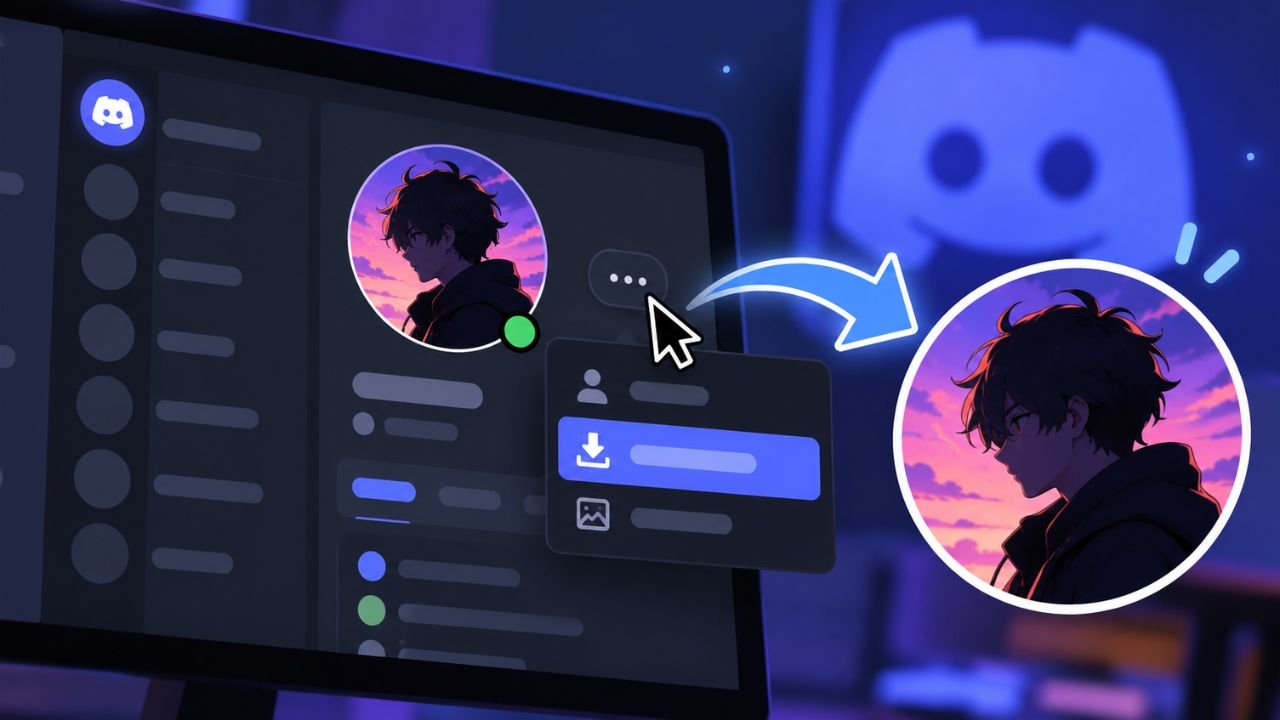
To take someone’s Discord PFP (profile picture), you usually can just go to the user’s profile to view the PFP in a larger size. Discord does not always allow you to download another user’s PFP from Discord directly. However, there are some easy ways to save a visible image from your internet browser to your desktop or smartphone.
This guide will teach you how to view, save and download a Discord PFP in a web browser or smartphone. You will also learn what to do if you see a blurry image or the download option is missing.
Table of Contents
How to Take Someone’s Discord PFP on a PC
The easiest way to download a Discord profile pic is to use Discord on a computer. To do this, follow these steps using either the desktop app or web version of Discord.
- Launch Discord: Login to your account through your desktop application or go to the official Discord website.
- Find the user: Look for them in your direct messages or find them in a server or on your friends list.
- Access their profile: Click on their name or profile pic to open their profile.
- View the larger picture: If there is a feature to open the profile picture in a bigger size, select that option.
- Save the image if possible: When the profile picture comes up as a new image in a browser, right-click it and choose “Save image as.”
- Select a location: Choose a folder on your computer to save the image.
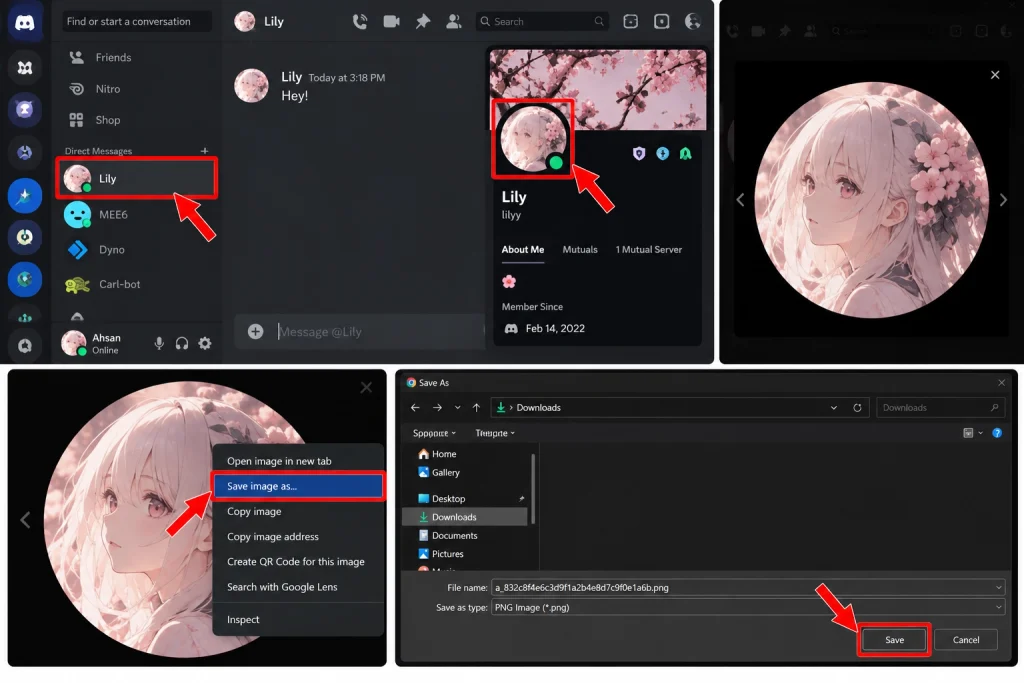
Please note that the functions available may vary between the Discord desktop application and the web version of Discord. If there is no option for right-clicking or saving the profile picture, please use the steps in the method below.
How to Download a Discord PFP Using a Web Browser
Sometimes, using the browser provides other ways to view images. This can become useful when the familiar save option is unavailable.
- Log in to Discord in the browser.
- Search for someone whose profile photo would like to be saved.
- Access the person’s profile and click on the profile photo for enlargement.
- If it opens in a separate browser tab, select “Save Picture as.”
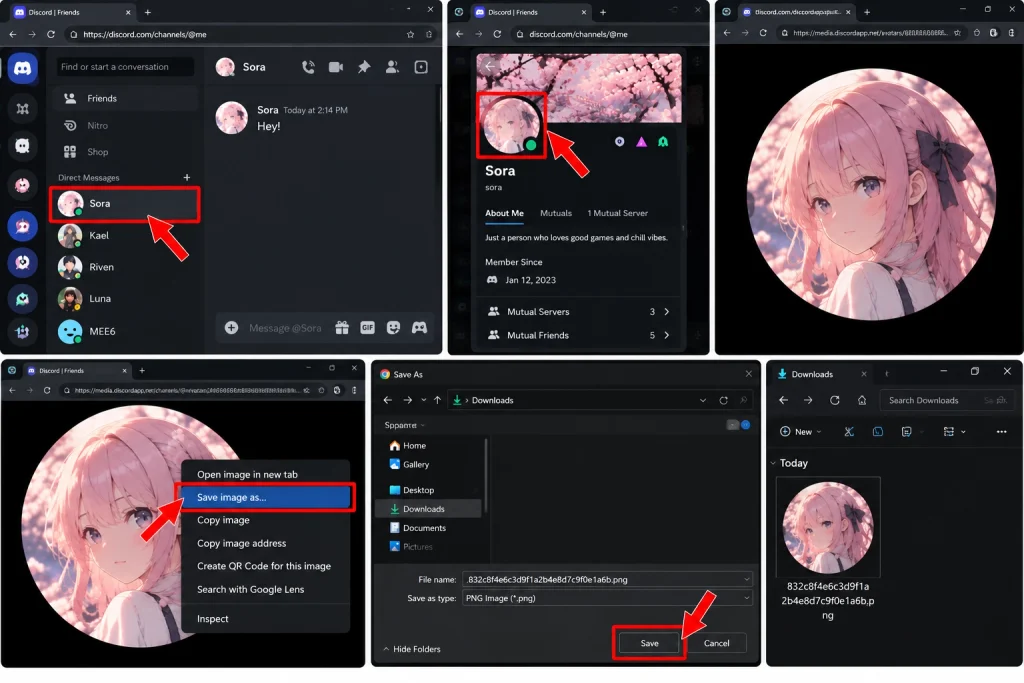
If it did not open separately, you may need to take another approach. In this case, you can utilize the developer tools in the browser to inspect the webpage and find the image link. However, this may require technical knowledge and Discord may change its structure over time.
Do not copy personal account information or apply browser tools to access information that you are not authorized to see. You only need the image that is subject to public viewing.
How to Take Someone’s Discord PFP on a Phone
You can also download a Discord profile photo on Android and iOS devices. The exact process may vary depending on your device and Discord version.
On Android
- Open the Discord app.
- Locate the user on Discord and go to their profile.
- Tap on the avatar to see if it opens up in a larger format.
- If the larger image can be opened in your web browser, you can download the image through the browser as it has a specific function for that.
- Go to your Downloads or Gallery to check that the photo has been downloaded.
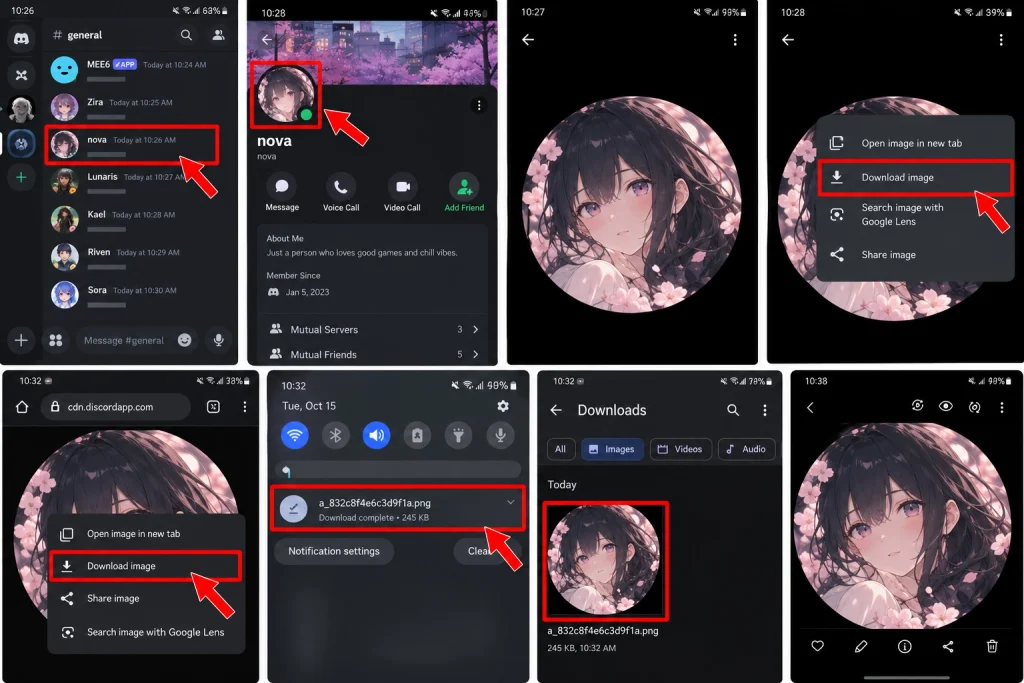
If Discord does not allow downloading the photo, you could try using Discord on your mobile web browser. Depending on the web browser, hold down your finger on the larger image and select Download image.
On iPhone
- Open Discord and go to the user’s profile.
- Touch the profile image if the enlargement option is available.
- Then if it is available, select the image to open the page in Safari or any other browser.
- Now long-press the image to find the save option.
- Select the download/save option that is offered.
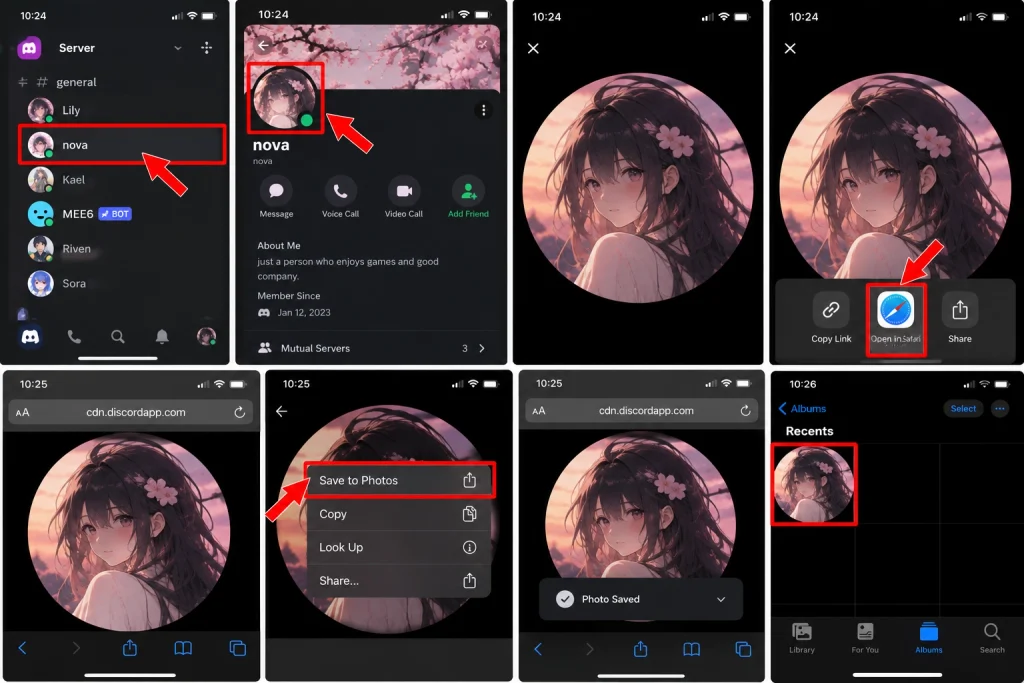
Finally, access the Photos application or Files Application to find the saved image. Saving options might differ among devices.
How to Get a Higher-Quality Discord Profile Picture
What may look clear as a small profile picture can become blurry when viewed larger. This occurs because the image may not have a very high resolution.
To improve the quality of the image, take the following steps:
- Make sure to fetch the biggest version available. If the Discord version you are looking at has been enlarged, then choose that one instead of taking a small thumbnail.
- Do not take screenshots unnecessarily. Taking screenshots usually reduces the pixel size, especially if the original image was small.
- Use the file format that’s there. If the option allows you to save it directly from the application, do not convert it unless you have no other way.
- Check the file that you have saved. Open it and zoom in to see whether it has sufficient quality.
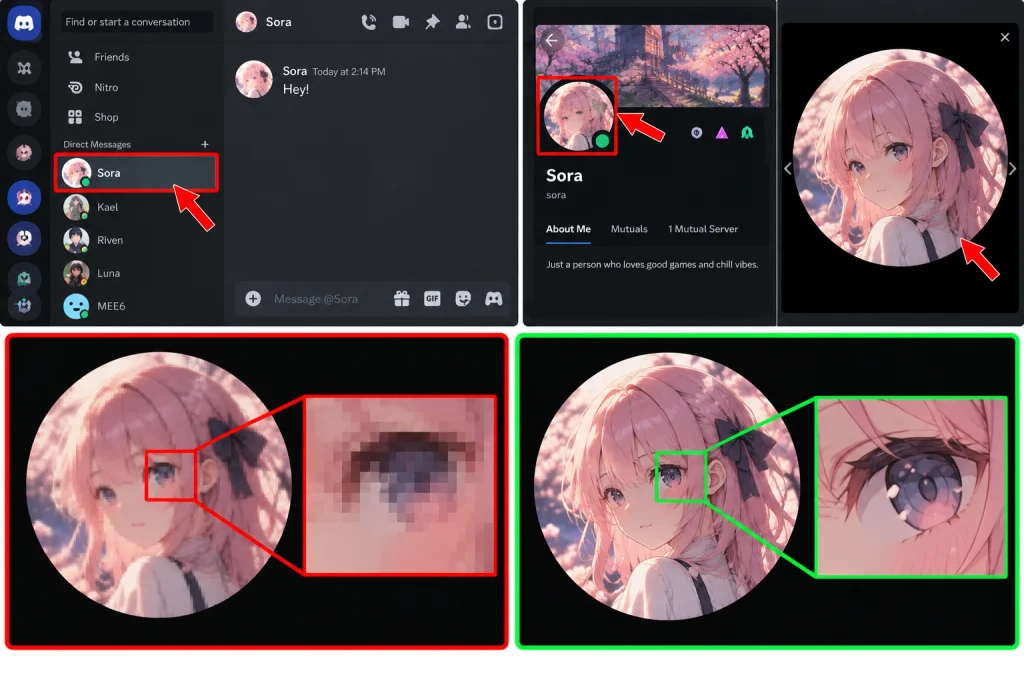
In any case, you still cannot get details that aren’t there in the file you have. If you uploaded a small avatar, that would not help when you save it.
Can You Take a Discord PFP Without Adding the Person?
In most situations, it is possible. You do not have to add the user as a friend to be able to see their profile picture. For instance, you can view their profile from a server in common or from past chat messages.
However, your ability to do so will depend on what information you can see via their Discord account. If you are unable to access their profile or picture, do not attempt to circumvent any of the restrictions in place on their account or attempt to obtain private information.
In addition of which, it should be noted that the profile picture may belong either to someone else, or to a creator. Using a profile picture for personal use is different from reposting it, impersonating someone or claiming it for your own use.
Is It Safe to Use a Discord PFP Downloader?
There are many websites and programs/tools that say they can let you download profile pictures from Discord given only a username or user ID. But be careful before using any of them.
The following tips are important when using such a tool:
- Do not give your Discord password to an unknown site.
- Do not use any tool that requires you to install remote desktop software or any suspicious browser extension.
- Do not use any tool that asks for excessive permissions.
- It is better to choose methods that allow you to download images that are already available to you via Discord.
A site that tells you it will provide a high-quality picture may not be able to offer the profile picture you want. In addition, many sites may present misleading download buttons or attempt to capture personal information.
Final Thoughts
When a Discord user’s profile picture is viewable to you, it’s relatively easy to save. First, go to their profile and see if the image is enlarged or downloadable. If not, try the browser options on your computer or mobile phone. Lastly, if this doesn’t work, consider using another method that only accesses content visible to the public.
You should respect the person behind the image and their image rights. Use it for a reasonable reason and ask first if you plan to repost on another platform or somewhere else.