You can use the screen recorder app which is available on most Android and iPhone devices, if you want to record a video or voice call on WhatsApp. There is no option in the app to enable call recording, WhatsApp doesn’t allow. Hence, you can use the screen recorder to record your calls whether it is an outgoing or an incoming call.
However, there is one important point: recording a call does not always capture the other person’s voice. It may be impossible due to the phone makers and operating systems limitations. So it is better to make some short recording to check it out.
You should also notify the other party that you will be recording the call as recording rules are different in every country and in some countries everyone participating in the call needs to know about it and agree to that.
Table of Contents
Can You Record a WhatsApp Call?
Yes, you can record WhatsApp calls on many devices, although it may depend on your phone model and its software.
WhatsApp can be used for voice and video calls on Android devices and iPhones or computers. While the official FAQ page on the topic shows how to use both these features, it does not contain the built-in feature of call recording.
Instead, you can make use of the screen recording function available on your phone.
Keep these points in mind:
- Screen recording can capture what appears on your display.
- Your phone may allow microphone recording.
- Internal call audio may not be captured.
- Some devices can block audio during calls.
- A short test is useful before an important call.
How to Record a WhatsApp Video Call on Android
If you’re using an Android device, you can record your WhatsApp video calls. The screen record button may be different depending on the brand (Samsung, Google Pixel, OnePlus, etc.) you are using.
Follow these steps:
- Start a video call on WhatsApp.
- Swipe down from the top of your screen.
- Access the Quick Settings menu.
- Look for Screen Record or Screen Recorder.
- Choose an audio option.
- Begin recording.
- Go back to your call on WhatsApp.
- Continue with the video call.
- Once the call ends, turn off the screen recording.
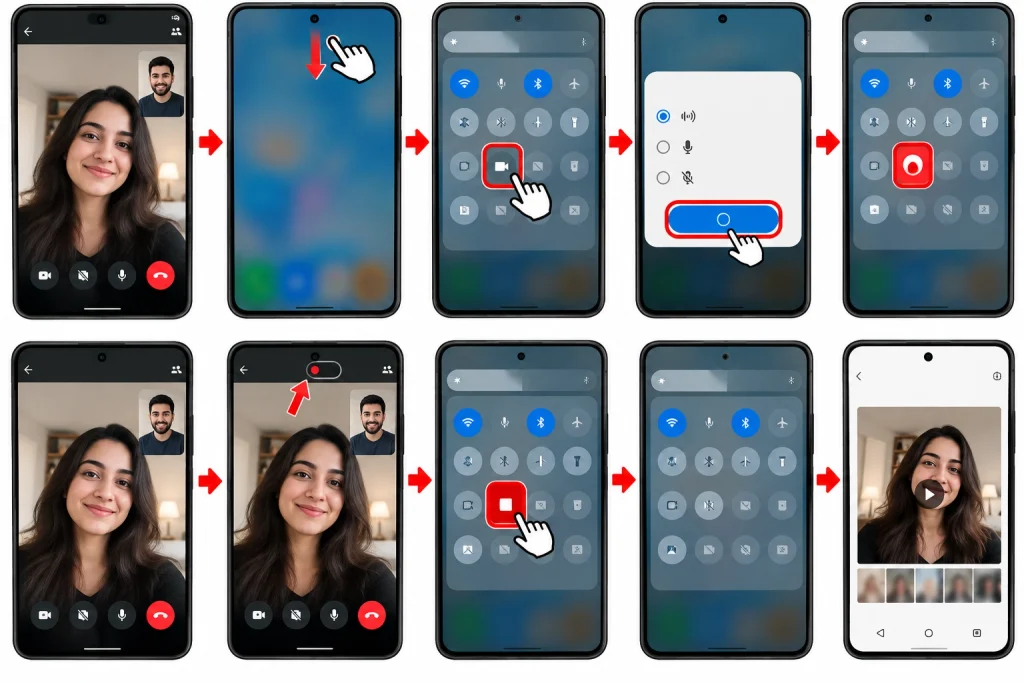
For example, on Google Pixel devices, users can decide if they want to add audio to their recording. You may also have to choose between recording the entire screen and just your app’s screen.
Other phone manufacturers may use phrases like Device audio, Microphone, or Device audio and microphone to refer to the audio settings.
If the call audio is missing
It does not mean that the screen recorder has got a problem. The operating system or WhatsApp interface stops some call audio from recording as well.
To start with, do a test call again. Ensure that you make the necessary settings for audio before you begin the recording. If the phone allows you use both device sound recording and mic recording, then it’s time to use recording style which works for your phone.
It is also vital to check whether you have issued a mic permission to WhatsApp. Android operating system allows a user to regulate app permissions in the settings of the gadget.
How to Record a WhatsApp Video Call on iPhone
iPhone has a built-in screen recording tool. You can also turn on the microphone for a screen recording.
How to Record:
- Start your WhatsApp video call.
- Select the Control Center by swiping down from the top right of the screen.
- Look for the Screen Recording button and press and hold it.
- Activate the Microphone if you wish to capture the audio.
- Press Start Recording.
- Wait until the timer has counted down.
- Go back to your WhatsApp video call.
- Finish the video call.
- Afterward, end the recording.
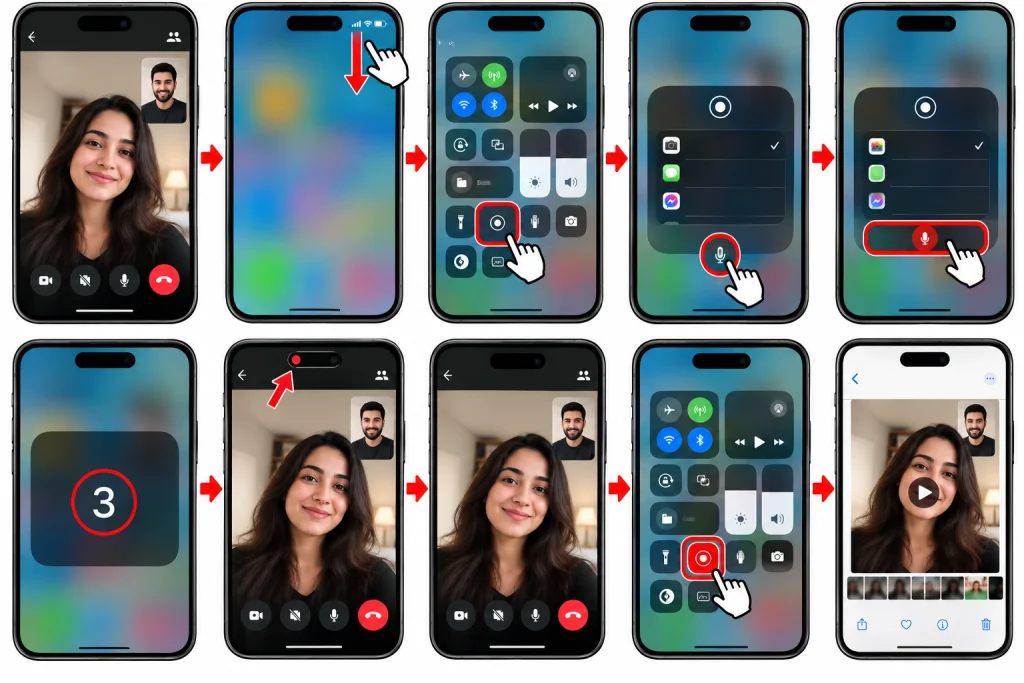
According to Apple’s latest guidelines, it is confirmed that microphone recordings can be made while recording screens on the iPhone if the Microphone is enabled. The saved recordings will then automatically be uploaded to the Photos App.
However, Apple has warned that some apps may restrict the recording of audio and content; thus, even when the Microphone is activated, you cannot be 100% sure that both sides of a WhatsApp call recording will be saved.
How to Record a WhatsApp Voice Call
Recording an audio call is practically the same as recording a video call except that there is no video to record.
Android Users
First, make the WhatsApp audio call. Next, access Quick Settings and select Screen Record. If you have audio options, select the one you need.
After that, start recording and continue with the call.
When you finish the call, stop the screen recording. Open your Gallery/Photos app to find the file.
If there is no sound, repeat the test making sure that the audio settings are different. Many Android phones allow for different audio sources to be chosen, such as device audio or microphone audio. Google has a list of the audio settings available for certain Pixel phones.
iPhone Users
Make a WhatsApp voice call and activate the Control Center. Hold down the Screen Recording button.
Enable the microphone and begin recording.
Still, it is important to remember that iPhone screen recording has limitations imposed by the app. Consequently, there may be a screen recording with the recording being only partial in audio quality from the WhatsApp call.
What to Do If WhatsApp Call Recording Has No Sound
One of the biggest issues when recording calls is that sometimes the recordings will be silent.
Check your device for the following:
- The phone is not muted.
- Check the audio settings of the screen recorder app.
- WhatsApp has permission to use the phone’s microphone.
- Test to see if the recording is successful prior to making an important call.
- If applicable, try to use speaker mode.
- Do not have any other recording programs open.
- Make sure that the phone is up to date.
If you are still not receiving audio from the call recording, it may be a phone operating system-related problem, rather than a settings issue with WhatsApp.
Do not download apps that you know nothing about just because the built-in recording program does not work. Some of these apps require unreasonable permissions, therefore compromising your private information.
Where Are WhatsApp Call Recordings Saved?
The place where this folder is found will depend on your phone.
If you have an Apple device, these screen recordings are saved in the Photos app.
If you own an Android phone, it usually saves the recording in the Photos or Gallery app. Certain phones will create their own screen recordings folder.
It is recommended that after recording, check the audio and video quality from the original file.
Can You Record WhatsApp Calls on a Computer?
WhatsApp offers voice and video calling for Windows, Mac, and supported web browsers. WhatsApp’s official help states that you will need an audio output device and microphone to make calls.
If you would like to record a call on your computer, you will need to use the screen capturing software available on your operating system. You may first want to test the software to make sure it captures sound.
Using a headset can also help reduce unwanted echo during calls. WhatsApp recommends a headset for better audio during computer calls.
Ask Before Recording a Call
Before you record, you need to inform the other person that you will be recording them. This is both a privacy concern and a legal obligation.
Some jurisdictions allow for recording when one party consents and some jurisdictions require consent from all parties to the communication.
Clarifying consent is therefore the best way to go about this.
Final Thoughts
It is possible to record WhatsApp video calls and voice calls with the support of your phone’s screen-recording options, but the result will vary depending on the device. While Android devices tend to have different audio options for screen recording, the iPhone is able to allow microphone audio to be captured through the process of recording.
The most important point of all is that you will want to test this method out before making that important call. Be sure to review the recording as a whole, including both video and audio. You will want to ensure that the other person’s voice is not missing from the recording, or if it is, figure out if the absence is due to the mobile device that is used or the operating system rather than WhatsApp itself.
Lastly, you also want to make sure that you respect the privacy of the other party and adhere to the laws pertaining to recording within your area.