If you want to protect your Excel spreadsheet from being edited, you should make it read-only. When you set your Excel workbook to read-only, others can look at your data but won’t be able to modify it accidentally. Microsoft Excel allows for several different ways to accomplish this, depending on how much protection you need.
For instance, you can mark your excel file as final, require a password for modification, or protect a worksheet. There are different methods available to protect your workbook, and you will need to decide which one best suits your needs.
This article will explain how to easily make your Excel file read-only using the easiest means available.
Table of Contents
Method 1: Mark Your Excel File as Final
An easy way to make an Excel file read only is to use the Mark as Final feature. This will inform the users of your workbook that it is finalized and they can not make any changes.
To use it:
- Open your Excel file.
- Press the File tab.
- Select the Info option.
- Click the Protect Workbook button.
- Choose Mark as Final.
- Confirm your action if prompted.
- Click Save.
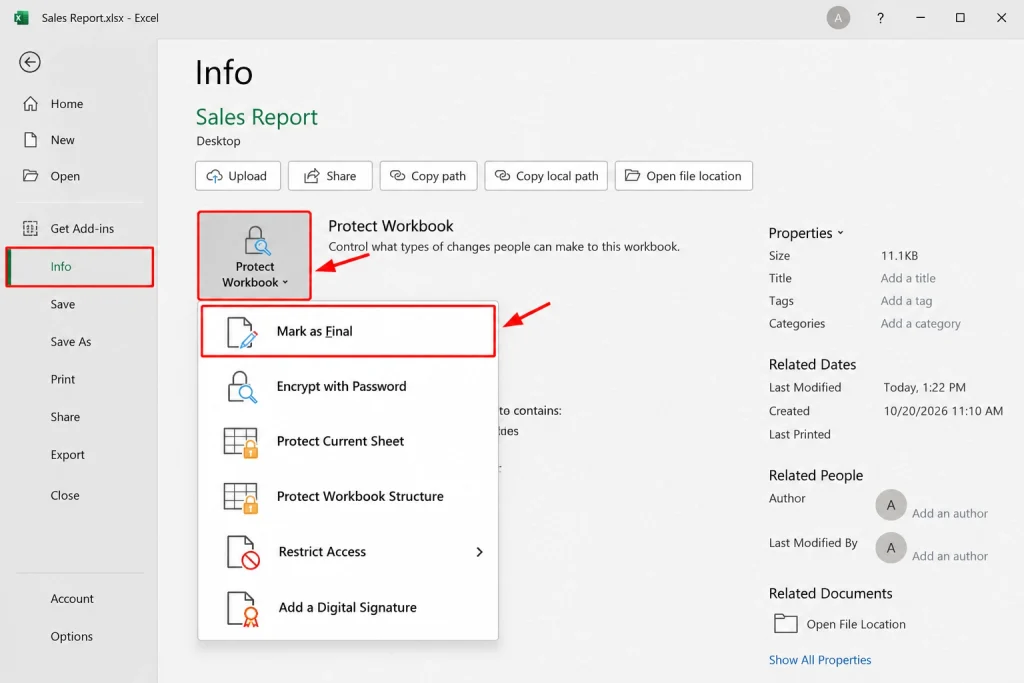
Excel will then mark the file as final so that any other user can read it as Read Only.
Do take note that not a very strong protection option. Anyone receiving the file can revert it back to an editable document anytime because it is just marked as final, not locked. Use this feature only for finalized reports that do not need strong access controls.
Method 2: Make an Excel File Read Only With a Password
If you prefer to exercise more control over who can edit your Excel files, you can protect the workbook with a password that needs to be entered to allow modifications. Depending on your version of Excel, this option can be found with the Save As dialog options.
If you are using supported desktop versions of Excel do the following:
- Open the Excel workbook you want to protect.
- Go to File and then to Save As.
- Select the desired folder where you want to save your file.
- Open the Save As options.
- Locate the Tools option, select General Options. In some older versions, it may be available as a dropdown arrow next to the Save button.
- Enter the desired password in the Password to modify box.
- Select Read-only recommended if necessary.
- Click OK and verify your password if prompted.
- Finally, save the workbook.
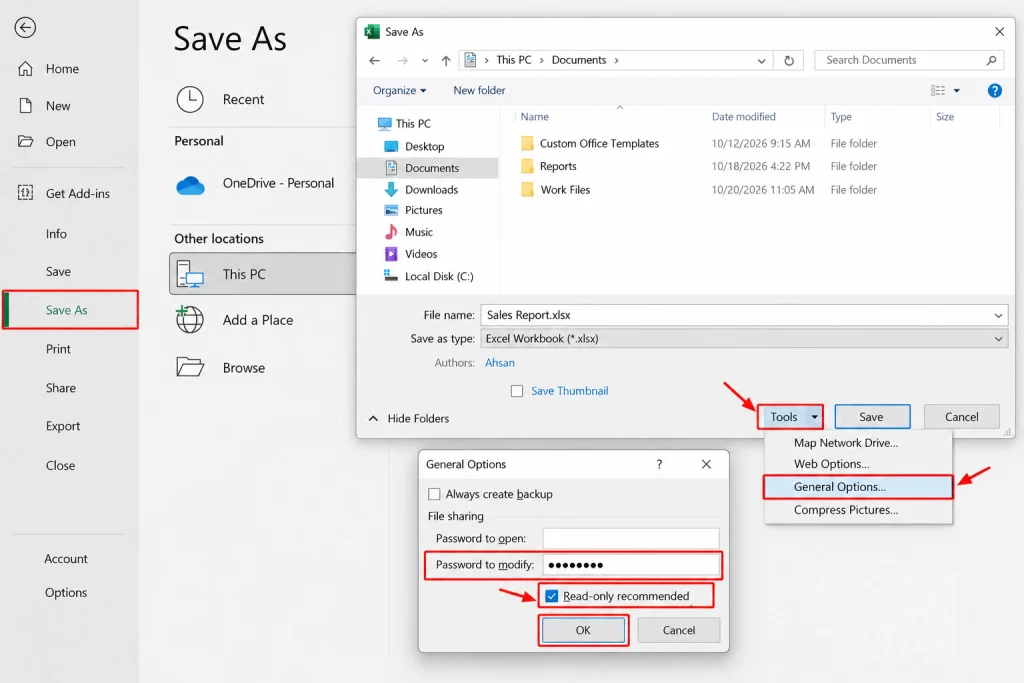
Whenever another user attempts to open the file, Excel will prompt them for the password if they try to modify. They may still be able to open the file as read-only.
This option is useful when you want an audience to view your report but still control who has access to the original file.
Note: Make sure to store your password safely. Microsoft cannot retrieve any forgotten password. Additionally, options and menus may vary by Excel version.
Method 3: Protect an Excel Worksheet
You don’t need an entire file to be read-only; you may want to prevent user changes to formulas, prices, and significant data in just one worksheet.
You can do this by using the method called Protect Sheet.
To protect a worksheet, perform the following steps:
- Start Excel and open the required file.
- Select the worksheet to be protected.
- Select “Review” from the top menu.
- Click on “Protect Sheet.”
- Type in a password if desired.
- Choose which activities to allow users.
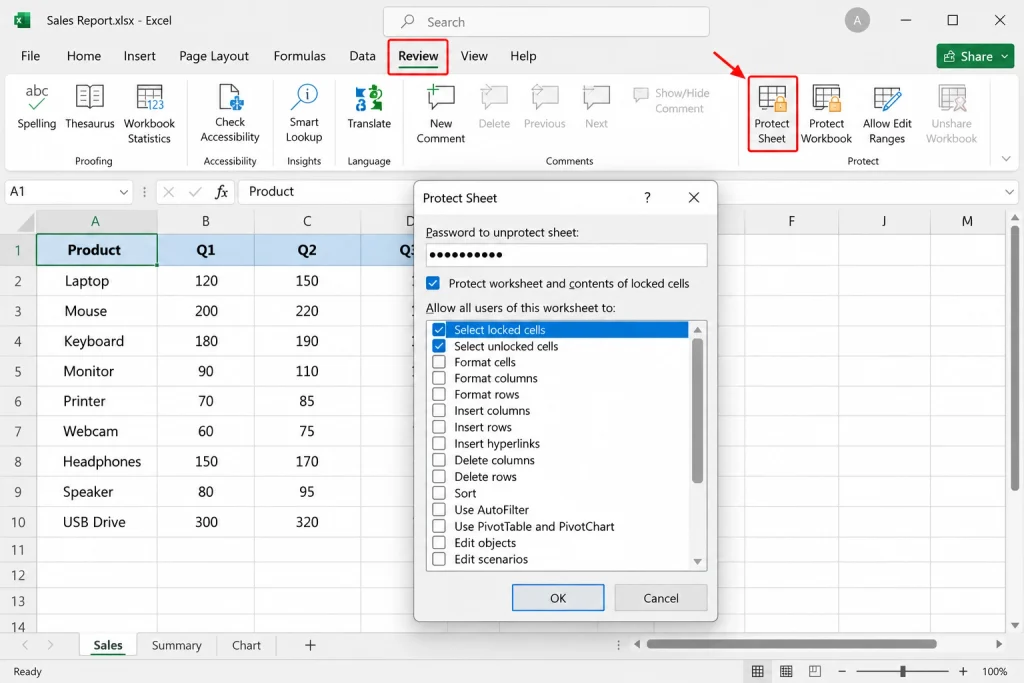
Your worksheet will now be protected thus users won’t be able to edit locked cells unless the protection is removed.
For example, if you have a sales report, you can lock the cells using formulas so users won’t be able to accidentally delete the important calculations.
You can allow users to make changes to certain unlocked cells while keeping the rest of the worksheet protected.
Method 4: Protect the Workbook Structure
To prevent users from adding, deleting, moving, hiding or renaming worksheets, you can secure the workbook structure.
It differs from granting the whole Excel file as read only as it secures the structure of the sheets rather than the content in every cell.
To activate the workbook protection:
- Launch Excel file.
- Navigate to the Review section.
- Choose Protect Workbook.
- Enter password if specified
- Re-enter the password and save your document.
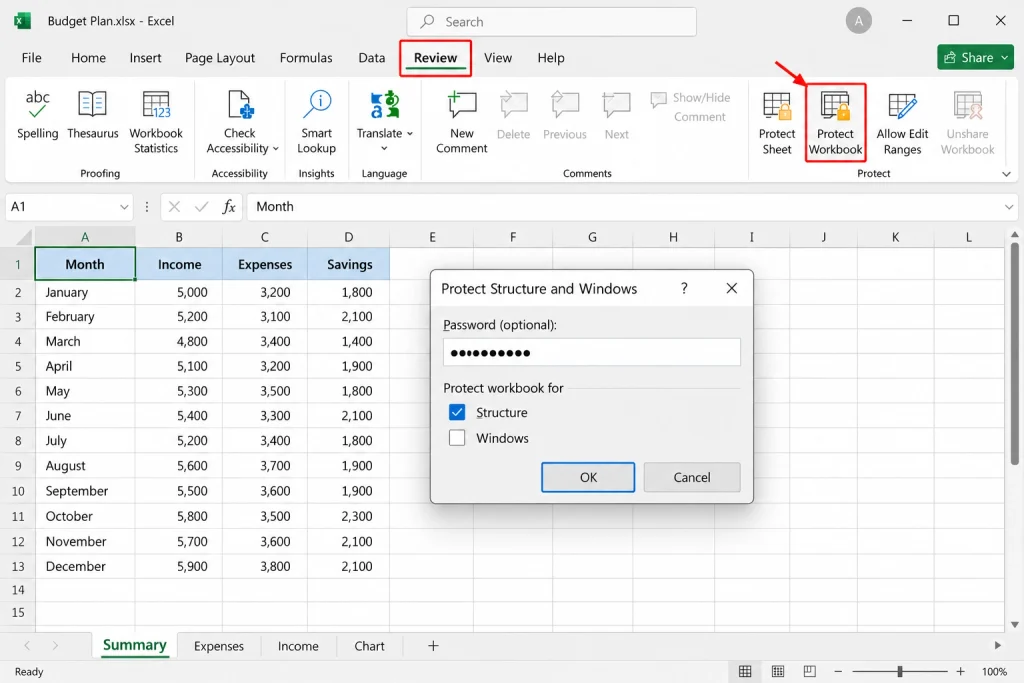
After that, users will have limited options to alter the structure of the workbook.
For example, this method can secure a financial workbook consisting of separate sheets for income, expenses, and total for the year.
However, the ability of the users to edit info in the cell in unprotected sheets would still exist hence it is advisable to merge workbook protection and sheet protection whenever needed.
Which Method Should You Choose?
The best method depends on what you want to protect.
- Mark as Final: When you finish creating documents that will not need to be modified, choose this option.
- Password to modify: Use this choice if the public can view the documents, but only approved individuals need access to modify them.
- Protect Sheet: This option allows you to freeze certain areas of a document without hindrance.
- Protect Workbook: This choice locks the entire structure of the document.
For additional security, use your organization’s system for providing file access permissions based on a need-to-know basis.
How to Remove Read-Only Protection in Excel
If you need to make changes to your workbook later on, you can remove the read-only setting to proceed.
In situations where your file is marked as final, open the file and navigate to the Info section under the File tab, click on Protect Workbook, and select Mark as Final again to disable that option.
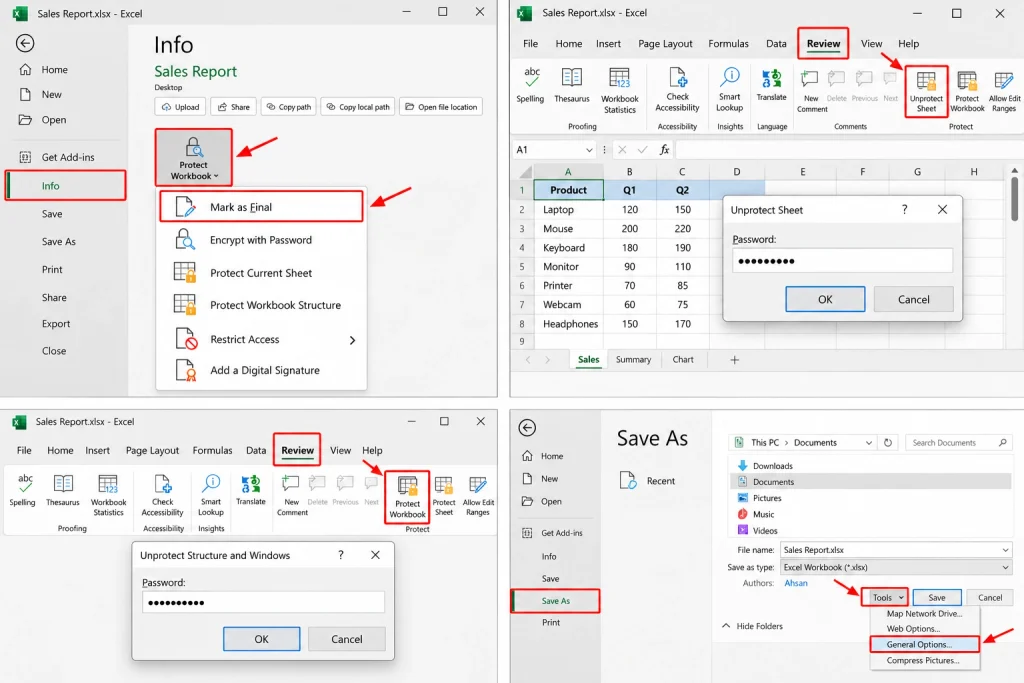
If your worksheet is protected, you need to access the worksheet and go to Review > Unprotect Sheet followed by entering your password if Excel prompts you for one.
In situations where your entire workbook has a protection at a structure level, select Review > Protect Workbook and enter the corresponding password.
If the workbook is protected by a modification password, it is a requirement for having access to the file.
Final Thoughts
Setting an Excel document to be read only is a very easy way to minimize unwanted modifications and keep documents organized. You can set a workbook to be marked as final, require a password to make modifications, or protect a single worksheet.
Whatever your reason, your choice of the best procedure depends on your objectives. The option Mark as Final may be adequate for a basic reminder. If you want greater control over editing, use the option to require a password to edit, or you might protect the entire workbook.
Keep in mind that just because you’ve used read-only capacities and worksheet protection in your workbook does not equate for solid security. Should your workbook contain some varying aspects of secret and/or sensitive information, it would be a best practice to apply suitable access controls and secure the file prior to sharing it.