Nowadays, whenever you search on Google, you will notice that you often see “AI Overviews” at the top of your search results. These AI Overviews provide you with a brief summary of a page of information and often try to answer your query quickly. However, many Internet users find these AI Overviews annoying and unhelpful.
Additionally, Google has made it impossible for you to disable AI Overviews, as Google understands this is a key change to their Google Search feature. Don’t worry, there are simple ways to skip these AI summaries and get back to the normal search results you’re used to.
Table of Contents
What Are Google AI Overviews?
Google AI Overviews are summaries generated by AI that appear at the top of your search results. Summaries used information from multiple websites to provide direct answers to your queries. Unfortunately, at times that information can be limited or inaccurate, and that’s why many users choose to skip them altogether.
Google AI Overviews are closely connected to Google’s broader AI ecosystem, including tools like Gemini AI. If you want to better understand how Google’s AI works behind the scenes, you can learn how to login to Google Gemini AI and explore its features directly.
Method 1: Create a Custom Search Engine in Chrome Desktop
This method allows you to create a new search option, which will bypass AI Overviews and show you only web results. Here’s how to set it up:
Image Source: Google Search Setting in Chrome
Step #1: Open Chrome Settings
Select the three dots in the top right of your Chrome browser.
From the dropdown menu, select “Settings.”
Step #2: Search Engine Settings
Select “Search engine” in the left sidebar.
Select “Manage search engines and site search“
Step #3: Add New Search Engine
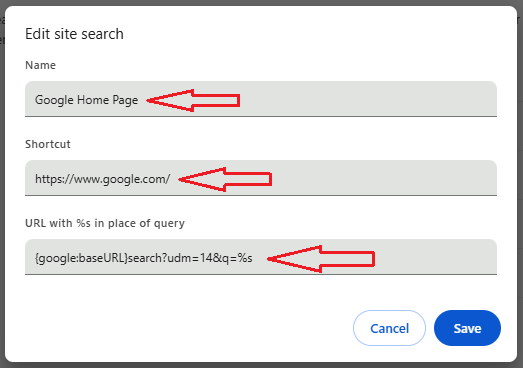
In “Site search” and click the “Add” button. Fill in the following:
Name: Google Web Page
Shortcut: https://www.google.com/ (or whatever short code you prefer)
URL: {google:baseURL}search?udm=14&q=%s
Step #4: Save and Make Default
Click “Add” to save your new search engine.
Select the three dots next to your new search engine.
Select “Make default” and it will be used automatically.
Now, when you search, you will see normal web results with no AI Overviews distracting from your results at the top of your screen.
Method 2: Use Browser Extensions
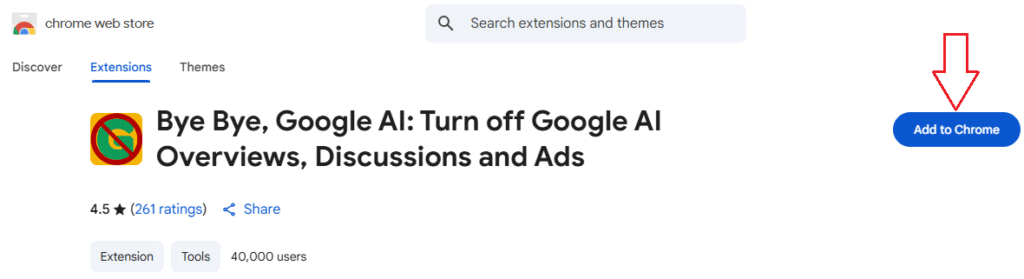
A number of browser extensions can be used to hide AI Overviews from your search results. Extensions, like “Bye Bye, Google AI”, can block the AI Overview elements, but you can also use a custom CSS extension that allows you to hide specific page elements, or a dedicated AI overview blocker that works specifically for this function.
Image Source: Google Chrome Extension
How to install an extension:
Go to the Chrome Web Store
Search for “Bye Bye, Google AI: Turn off Google AI Overviews, Discussions and Ads“
Click “Add to Chrome” on the extension of your choice
Follow the instructions to set it up
Method 3: Modify Your Search Habits
Even without technical changes, you can also modify how you search to reduce AI Overview impact:
Use Specific Search Operators:
Add quotation marks around exact phrases
Use the minus sign (-) to exclude specific words
You can also use Google Search to find trusted business pages and learn how to leave a review on Facebook after researching businesses properly.
Manually Go to Web Tab:
After searching, just click the “Web” tab under the search bar to see traditional results not impacted by AI summaries.
Method 4: Mobile Solutions
For mobile devices, the process is slightly different:
Android Chrome:
Open Chrome on your Android Device.
Go to Settings > Search engine
You could add a custom search engine to the same URL format as desktop.
Set it as your default search engine
iPhone Safari:
Open the Safari Settings
Go to the search engine options
You can’t add a custom search engine option, but you could bookmark a direct Google Web search URL
Why People Want to Disable AI Overviews
Here are some of the key reasons people prefer to skip AI Overviews.
Accuracy Concerns
AI summaries sometimes get it wrong. They either mix up facts or provide an incomplete version of the answer. Because of these accuracy concerns, users are becoming more cautious about online security, which is why features like Facebook passkeys for secure login are gaining popularity.
Misinformation and AI-generated summaries can sometimes expose users to unsafe websites. To stay protected, it’s smart to regularly check whether your email has appeared in data breaches by using Have I Been Pwned.
Faster Browsing
Without an AI Overview, your search results are quicker to display on your screen. You also have more space for actual website links when using your phone, which might mean less scrolling to get where you need to be.
Traditional Experience
Many people have been using Google the same way for years and know exactly where to look for information and how to find what they are searching for. Thus, it feels more comfortable to get back to Google’s old-style search results.
Final Thoughts
Google doesn’t allow you to completely disable AI Overviews, but that doesn’t mean you’re stuck. You can use the quick tips below to search the way you want. Here’s what works:
For computer users: Try the Custom Search Engine Method
Want something easy: Use a Browser Extension
For phone users: Use Smart Search Tricks
The way people search online is evolving, especially with AI becoming more prominent. If you’re using Google to research career opportunities or personal projects, you may also find value in learning how to put a side endeavor on LinkedIn to build your professional presence alongside smarter search habits.
Asiya Kanwal is a writer and content creator that especially works on the "how-to" niche. She holds MSc and B.Ed in IT. She shares accurate informational content with readers that helps them in daily life. Asiya Kanwal's main objective is to satisfy the readers with its content.